Last Updated on 4 April 2026 by Gary Perspective Gadgets
Never Lose That Useful Website Again: How to Bookmark a Webpage (Perfect for UK Seniors in 2026)
As an Amazon Associate I earn from qualifying purchases. This post may contain affiliate links — if you click through and buy, I may earn a small commission at no extra cost to you.
I was helping a neighbour last week – lovely lady, mid-70s, very sharp – and she said:
“Gary, I keep finding brilliant recipes on the BBC Good Food site, but next day I can never remember how I got there. I write the address on a bit of paper… and then lose the paper!”
It reminded me how frustrating it is when something simple like remembering a website feels difficult.
Bookmarks (sometimes called “Favourites”) are exactly that – a simple, free filing cabinet inside your web browser.
Think of bookmarks like the labelled drawers in my old drawing office. Once you put the right plan in the right drawer, you could find it in seconds for the next 20 years. The same principle works for websites.
In this guide I’ll show you the easiest ways to save (bookmark) any webpage using the four most popular browsers in the UK right now: Google Chrome, Microsoft Edge, Mozilla Firefox, and Apple Safari. I’ll keep it step-by-step, jargon-free, and include the keyboard shortcuts that save the most time.
Let’s get started.
What Exactly Is a Bookmark (and Why Bother)?
A bookmark is just a saved shortcut to a webpage. Instead of typing www.bbc.co.uk/weather or www.nhs.uk/conditions every time, you click once and you’re there.
Benefits for us seniors:
- Save favourite news, weather, banking, supermarket delivery, grandchildren’s school site, online bingo, Age UK pages…
- No more scraps of paper next to the computer
- Works even if you turn the computer off and on again (or use a different device – more on that later)
Method 1 – Google Chrome (Most Popular)
Chrome is the red, yellow, green, and blue circle icon on millions of UK laptops and desktops.
Quickest way (my favourite):
- Go to the page you want to save (e.g. perspectivegadgets.com/trackers)
- Look at the top – right side of the address bar – you’ll see a little star ⭐
- Click the star
- A small box pops up
- You can change the name if you want (e.g. change to “Gary’s Key Finders Review”)
- Choose where to save it:
- Bookmarks bar = always visible under the address bar (best for 6–10 favourites)
- Bookmarks menu → Other bookmarks (good for longer list)
- Click Done
Even faster keyboard shortcut (works on Windows laptops):
Press Ctrl + D while on the page → the same box appears instantly.
(On a Mac it’s Cmd + D – the key with the little Apple symbol.)
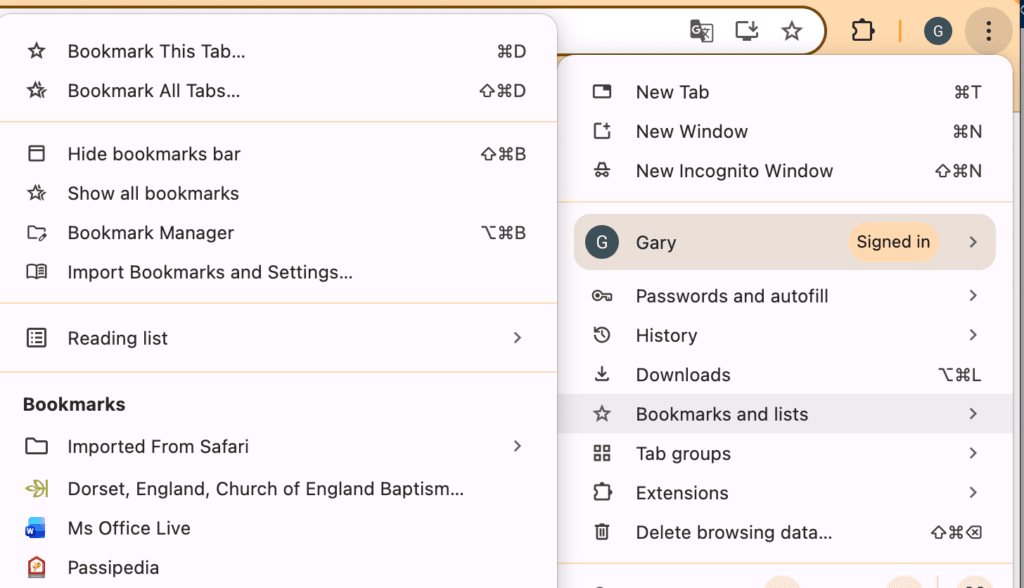
Tip from my own desk: I keep the Bookmarks Bar visible. If it’s hidden, click the three dots ⋮ (top right) → Bookmarks → Show bookmarks bar.
Method 2 – Microsoft Edge (Comes Free with Windows 10 & 11)
Edge is the blue-green wave icon – many newer Windows laptops open it automatically.
The steps are almost identical to Chrome (Microsoft borrowed a lot of Chrome’s design).
- Go to your page
- Click the star ⭐ on the right of the address bar (Edge calls them “Favourites”)
- Name it whatever makes sense
- Choose Favourites bar (always visible) or Other favourites
- Click Done
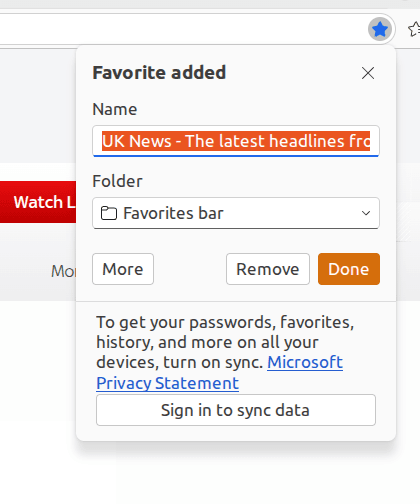
Keyboard shortcut: Ctrl + D (Windows) or Cmd + D (Mac)
Quick access tip: To see your Favourites bar, click the three dots ⋮ → Favourites → Show favourites bar.
Method 3 – Mozilla Firefox
Firefox is the orange fox wrapped around a blue globe (less common but still loved by many).
- Visit the page
- Click the star ⭐ (right side of address bar)
- Edit the name if needed
- Choose folder:
- Bookmarks Toolbar = always visible strip
- Other Bookmarks = menu list
- Click Add
Keyboard shortcut: Ctrl + D (Windows) / Cmd + D (Mac)
Show the toolbar if missing: Right-click empty space on the tab bar → tick Bookmarks Toolbar
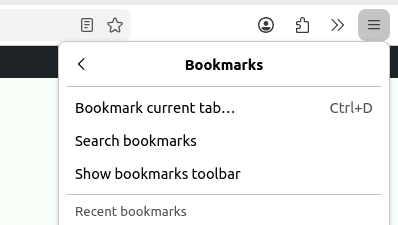
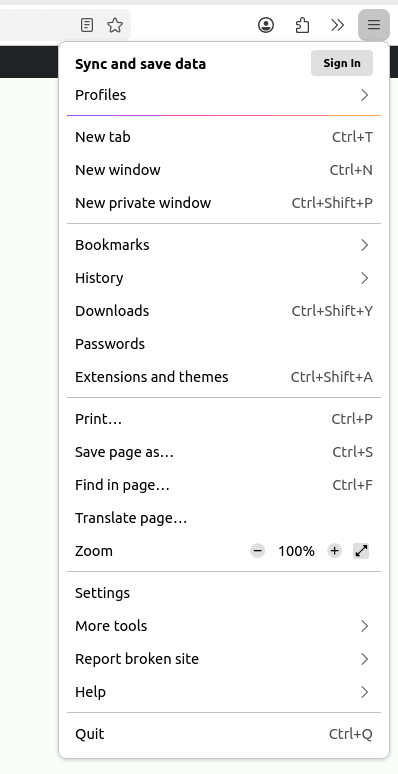
I use Firefox on my MacBook laptop and find the favourites bar brilliant for NHS, Met Office and online banking – one click, no typing.
Method 4 – Apple Safari (Mac, iPad & iPhone)
Safari is the blue compass icon on Apple devices and is only available on Apple devices.
On a Mac:
- Open the page
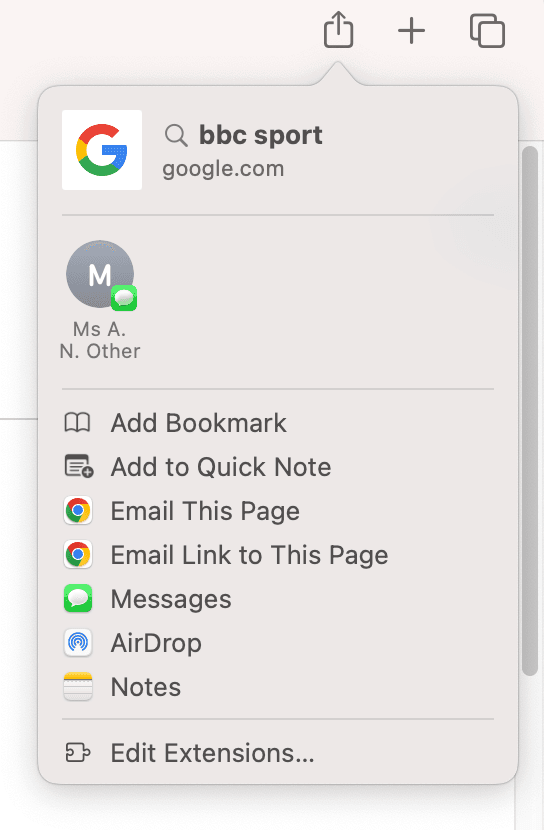
- Click Share button (square with arrow pointing up) in the toolbar – or look for the star in some versions
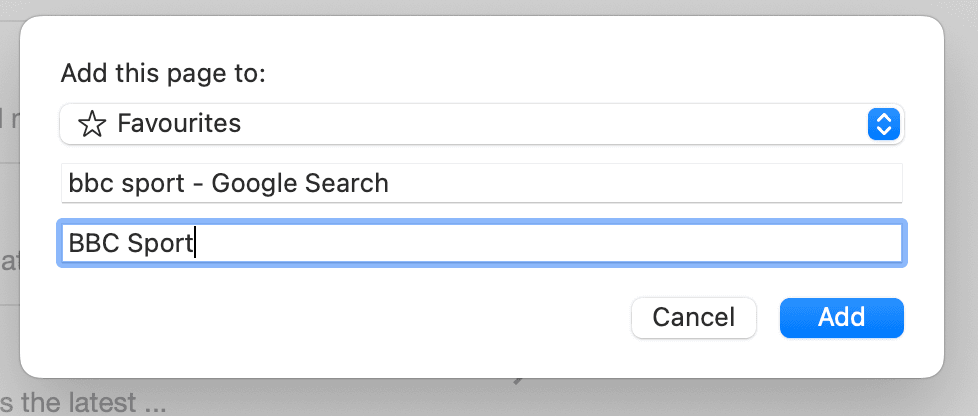
- Choose Add Bookmark…
- Name it
- Choose Bookmarks menu, Favourites (top bar), or a folder
- Click Add
Keyboard shortcut: Cmd + D
Show Favourites bar if hidden: View menu → Show Favourites Bar
On iPhone / iPad:
- Open Safari → go to page
- Tap the Share icon (square with arrow up) at bottom (or top on older iOS)
- Scroll down → tap Add Bookmark
- Edit name → choose folder → tap Save
Bookmarks sync automatically between your Apple devices if you’re signed in with the same Apple ID.
Handy Extras – Make Bookmarks Even Easier
1. Use the Bookmarks / Favourites Bar
This is the strip of icons/names just below the address bar.
Drag your most-used sites there (Weather, BBC, bank login, Perspective Gadgets!).
Only room for 8–12 comfortably – perfect for daily essentials.
2. Create Folders (Like Filing Cabinets)
Right-click the bar or go into Bookmarks menu → Add folder.
Examples I use:
- Banking
- Health & NHS
- Grandchildren (school & photos)
- Shopping
- News
3. Keyboard Shortcut Summary (Windows laptops)
- Ctrl + D = bookmark instantly in Chrome / Edge / Firefox
(Mac = Cmd + D everywhere)
4. Sync Across Devices (Big Time-Saver)
- Chrome & Edge: sign in with Google / Microsoft account → bookmarks appear on phone/tablet too
- Safari: automatic with Apple ID
- Firefox: sign in with Firefox account
Quick Checklist: Is Your Bookmark Working?
- Go to the page → click star / press Ctrl+D
- Give it a short, clear name
- Save to Bookmarks bar or sensible folder
- Click the bookmark once to test it opens correctly
If it doesn’t appear where expected:
- Look under Bookmarks menu → Other bookmarks
- Or turn on the Bookmarks/Favourites bar
The Engineer’s Final Word
Bookmarks are like putting a little label on the bridge girder so the next inspector knows exactly where to look. Once set up, they save minutes every single day – and those minutes add up.
I still smile when I click my “BBC Weather” bookmark in one second instead of typing the address. Small victories.
Give it a go today. Start with just three sites: your bank, the NHS page you use most, and perhaps this one so you can come back if you forget a step!
Stay safe online – and enjoy never losing a useful page again.
(First published 4 March 2026)
About The Author